TypeScript Quickstart for ADK
This guide shows you how to get up and running with Agent Development Kit for TypeScript. Before you start, make sure you have the following installed:
- Node.js 24.13.0 or later
- Node Package Manager (npm) 11.8.0 or later
Create an agent project
Create an empty my-agent directory for your project:
Configure project and dependencies
Use the npm tool to install and configure dependencies for your project,
including the package file, ADK TypeScript main
library, and developer tools. Run the following commands from your
my-agent/ directory to create the package.json file and install the
project dependencies:
cd my-agent/
# initialize a project as an ES module
npm init --yes
npm pkg set type="module"
npm pkg set main="agent.ts"
# install ADK libraries
npm install @google/adk
# install dev tools as a dev dependency
npm install -D @google/adk-devtools
Define the agent code
Create the code for a basic agent, including a simple implementation of an ADK
Function Tool, called getCurrentTime.
Create an agent.ts file in your project directory and add the following code:
import {FunctionTool, LlmAgent} from '@google/adk';
import {z} from 'zod';

/* Mock tool implementation */
const getCurrentTime = new FunctionTool({
  name: 'get_current_time',
  description: 'Returns the current time in a specified city.',
  parameters: z.object({
    city: z.string().describe("The name of the city for which to retrieve the current time."),
  }),
  execute: ({city}) => {
    return {status: 'success', report: `The current time in ${city} is 10:30 AM`};
  },
});

export const rootAgent = new LlmAgent({
  name: 'hello_time_agent',
  model: 'gemini-2.5-flash',
  description: 'Tells the current time in a specified city.',
  instruction: `You are a helpful assistant that tells the current time in a city.
                Use the 'getCurrentTime' tool for this purpose.`,
  tools: [getCurrentTime],
});
Set your API key
This project uses the Gemini API, which requires an API key. If you don't already have Gemini API key, create a key in Google AI Studio on the API Keys page.
In a terminal window, write your API key into your .env file of your project
to set environment variables:
Using other AI models with ADK
ADK supports the use of many generative AI models. For more information on configuring other models in ADK agents, see Models & Authentication.
Run your agent
You can run your ADK agent with the @google/adk-devtools library as an
interactive command-line interface using the run command or the ADK web user
interface using the web command. Both these options allow you to test and
interact with your agent.
Run with command-line interface
Run your agent with the ADK TypeScript command-line interface tool using the following command:

Run with web interface
Run your agent with the ADK web interface using the following command:
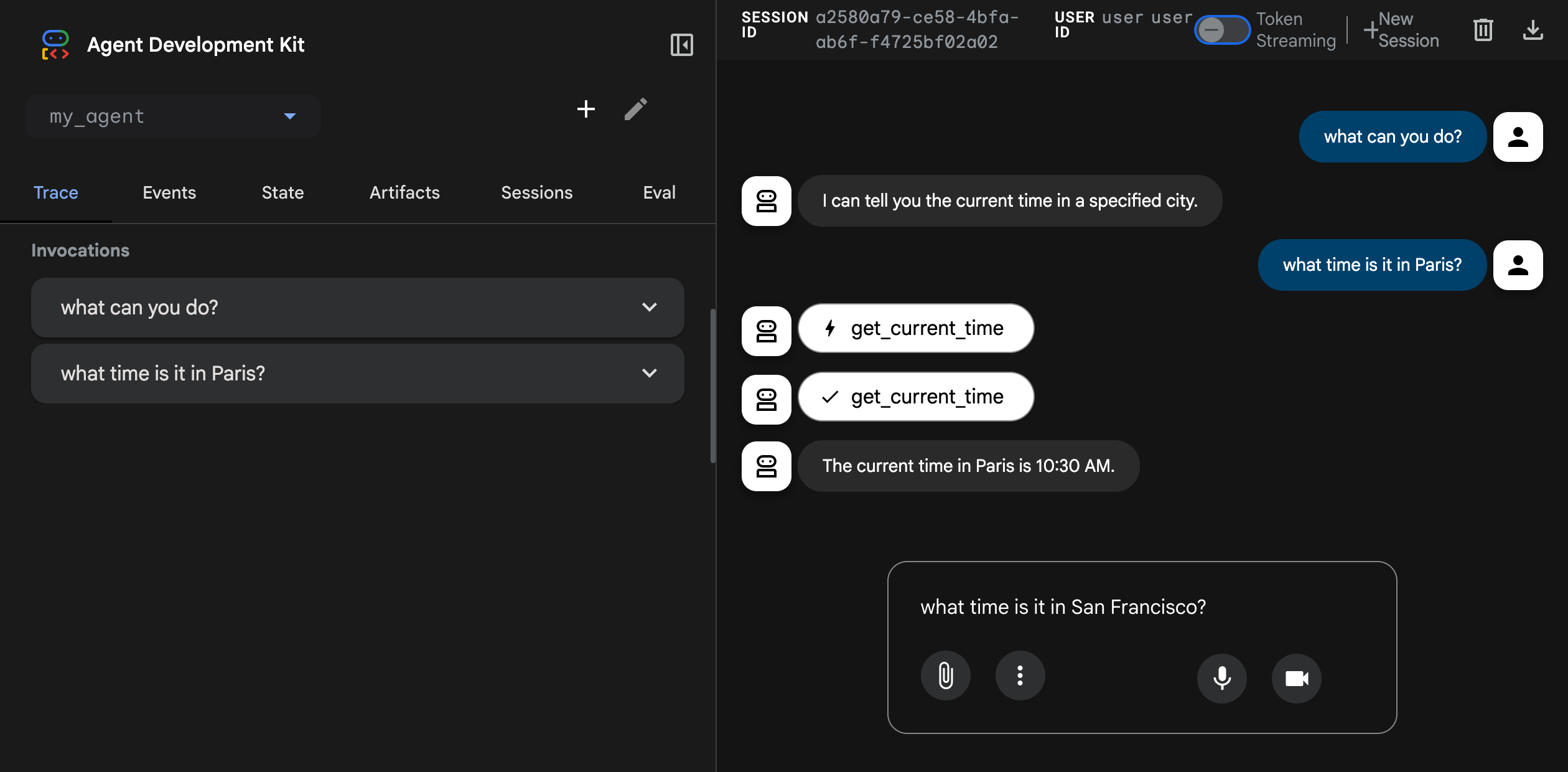
This command starts a web server with a chat interface for your agent. You can access the web interface at (http://localhost:8000). Select your agent at the upper right corner and type a request.
Caution: ADK Web for development only
ADK Web is not meant for use in production deployments. You should use ADK Web for development and debugging purposes only.
Next: Build your agent
Now that you have ADK installed and your first agent running, try building your own agent with our build guides: